ChatGPT Product Feed: How products show up in Ads

ChatGPT Ads can help businesses place products in front of people who are actively researching, comparing, and considering what to buy. But for those ads to work effectively, ChatGPT Ads Manager first needs accurate and organized product information.
That is where product feeds come in. A product feed connects your product catalogue with Ads Manager and provides details such as product names, prices, images, descriptions, and availability. Once the feed is processed correctly, eligible products can be used in advertising campaigns.
In this guide, we’ll walk you through how to set up a product feed in ChatGPT Ads Manager, map your catalogue fields correctly, and prepare your products for eligible ads in 2026.
A Simple Guide to Setting Up Your Product Catalog
If you want to promote products through ChatGPT Ads Manager, the Feeds feature helps you provide your product catalog so that eligible products can be used in your advertising campaigns.
Here’s a simple step-by-step look at what happens when you create a new product feed.
A product feed is a structured list of the products you want to make available for advertising.
Typically, your catalog can contain information such as:
Product name
Regular price
Sale price
Product image
Product information or other required catalog details
Once the feed is created and processed, the products can become available for eligible ads. Read more about how you can make your ad show to the right audience.
Step 1: Go to Feeds
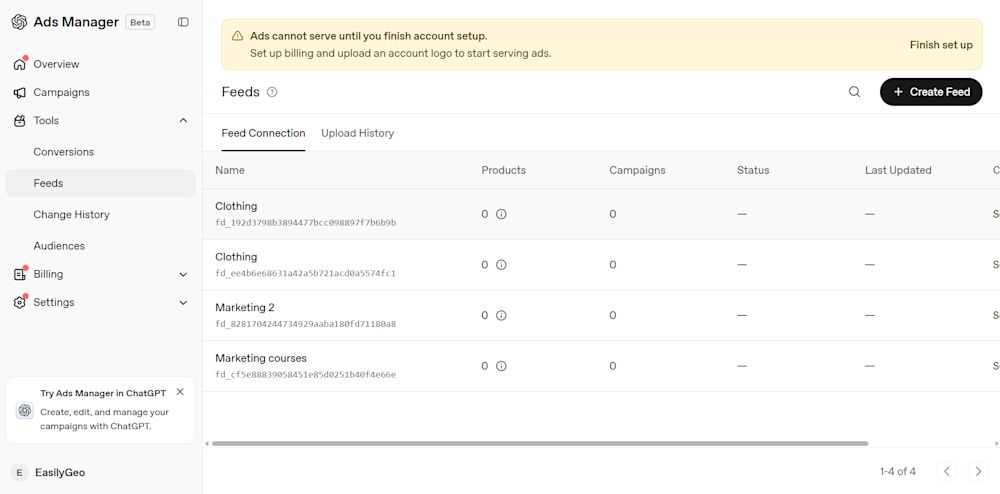
Inside Ads Manager, go to:
Tools - Feeds
You will see your existing product feeds and a Create Feed button.
Click Create Feed to start adding a new catalog.
Step 2: Enter a Display Name
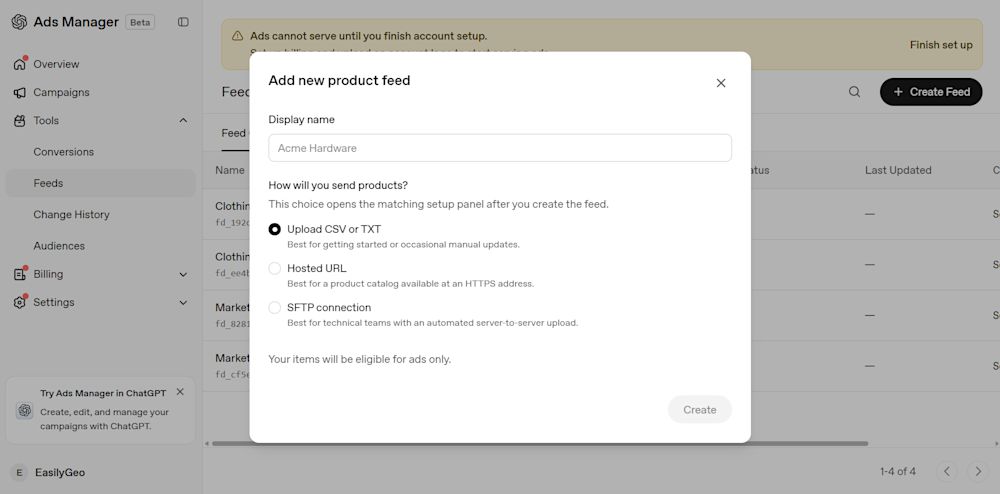
The first field is Display name.
Give your feed a name that makes it easy to identify later.
For example:
Clothing Catalog
September Product Feed
EasillyGeo Products
Online Store Catalog
Summer Collection
Tip: Use a name that tells you immediately what the feed contains.
Step 3: Choose How You Will Send Your Products
This is the important part. Ads Manager gives you three options for providing your product data:
1. Upload CSV or TXT
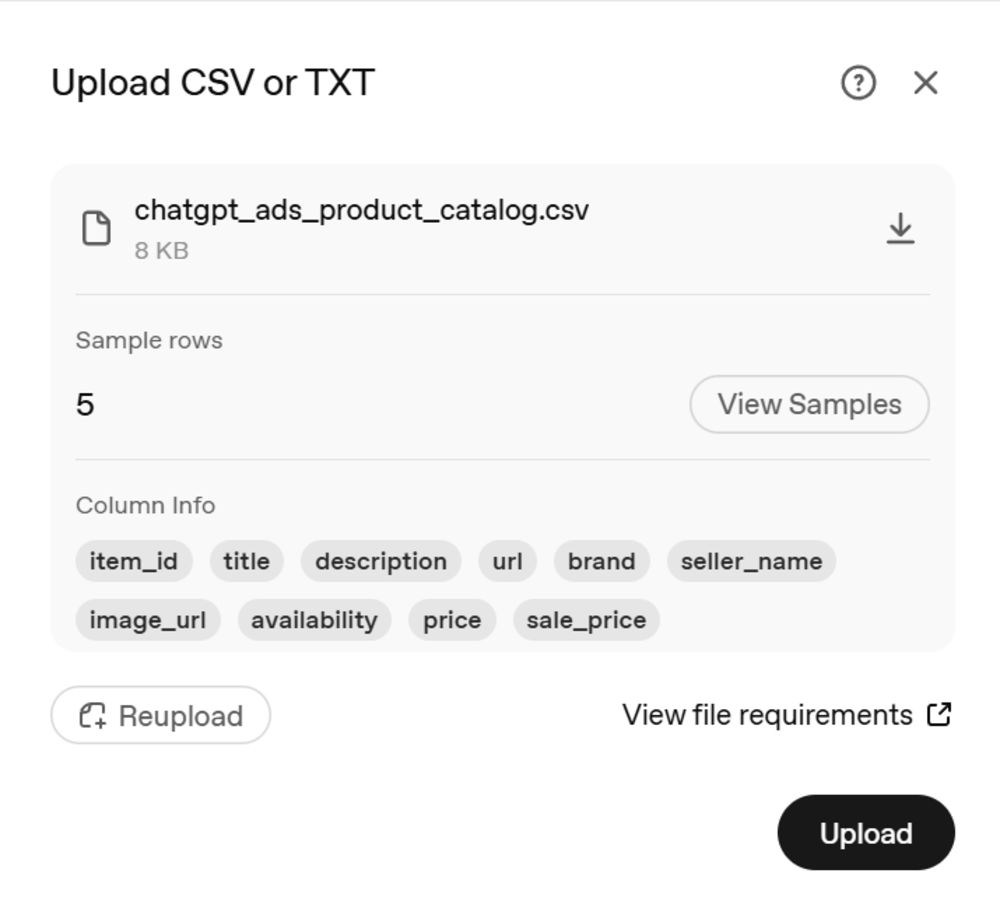
This is the simplest option if you're starting out or want to make occasional manual updates.
You prepare your product information in a CSV or TXT file and upload it.
Best suited for: Businesses that don't need their catalog updated automatically all the time.
2. Hosted URL
With this option, your product catalog is available at an HTTPS URL.
Ads Manager can access the product list from that location.
Best suited for: Businesses that already have a product catalog hosted online and want to use that source instead of manually uploading a file.
3. SFTP Connection
SFTP is designed for a more technical, automated setup.
Your product data is transferred through a server-to-server connection.
Best suited for: Larger or technically managed product catalogs where automated updates are required.
If you selected Upload CSV or TXT, the next step will involve providing your catalog file. So, creating the feed does not necessarily mean your products have been uploaded yet. It creates the feed configuration and then takes you to the appropriate setup panel.
Step 4: Complete the Matching/Setup
After creating the feed, Ads Manager opens the relevant matching setup panel.
This is where the system needs to understand the information contained in your product data and match the appropriate fields.
The goal is to ensure that information such as the product name, price and image is correctly understood as the corresponding product attributes.
Step 5: Check if Your Products Became Eligible for Ads
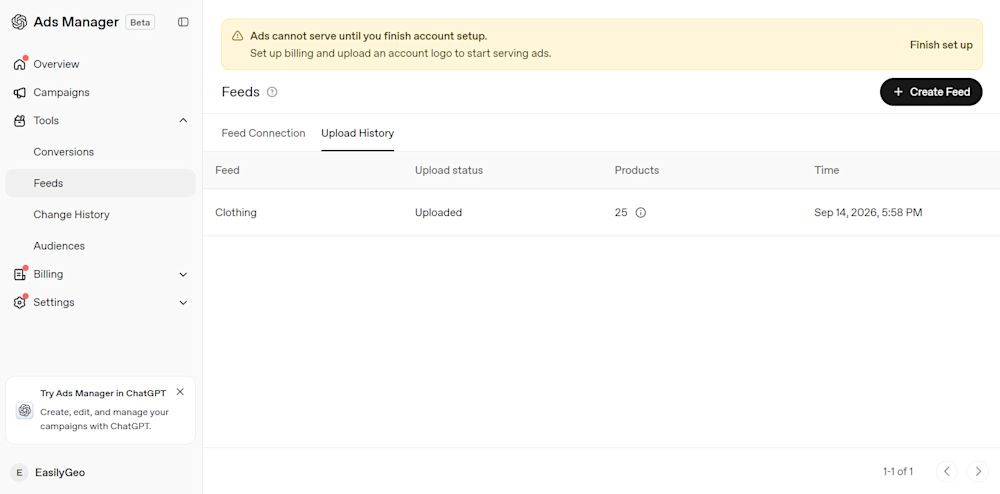
Once the feed has been successfully configured and processed, the products can be used for eligible advertising purposes.
The important point shown in the setup is:
Your items will be eligible for ads only. So the feed is specifically connected to the advertising use case.
For most beginners CSV/TXT is the easiest place to start. You can prepare your product catalog, upload it, complete the setup, and then check how the products are processed.
Make Your Products Easier to Discover with EasilyGeo
The Feeds feature essentially creates a bridge between your product catalog and your advertising campaigns. If you're new to Ads Manager, don't overcomplicate it. Start with a CSV/TXT upload, understand how the product information is mapped and processed, and then consider a hosted URL or SFTP when you need more automation.
Ready to improve how your products reach the right audience? Explore EasilyGeo and take the next step toward smarter product visibility.